
Appearance
Page Templates
Page Templates lists every template available on the site — the underlying layouts pages are built from. For each one you can see its file name, type, how many content regions it has, how many pages currently use it, and when it was last updated.
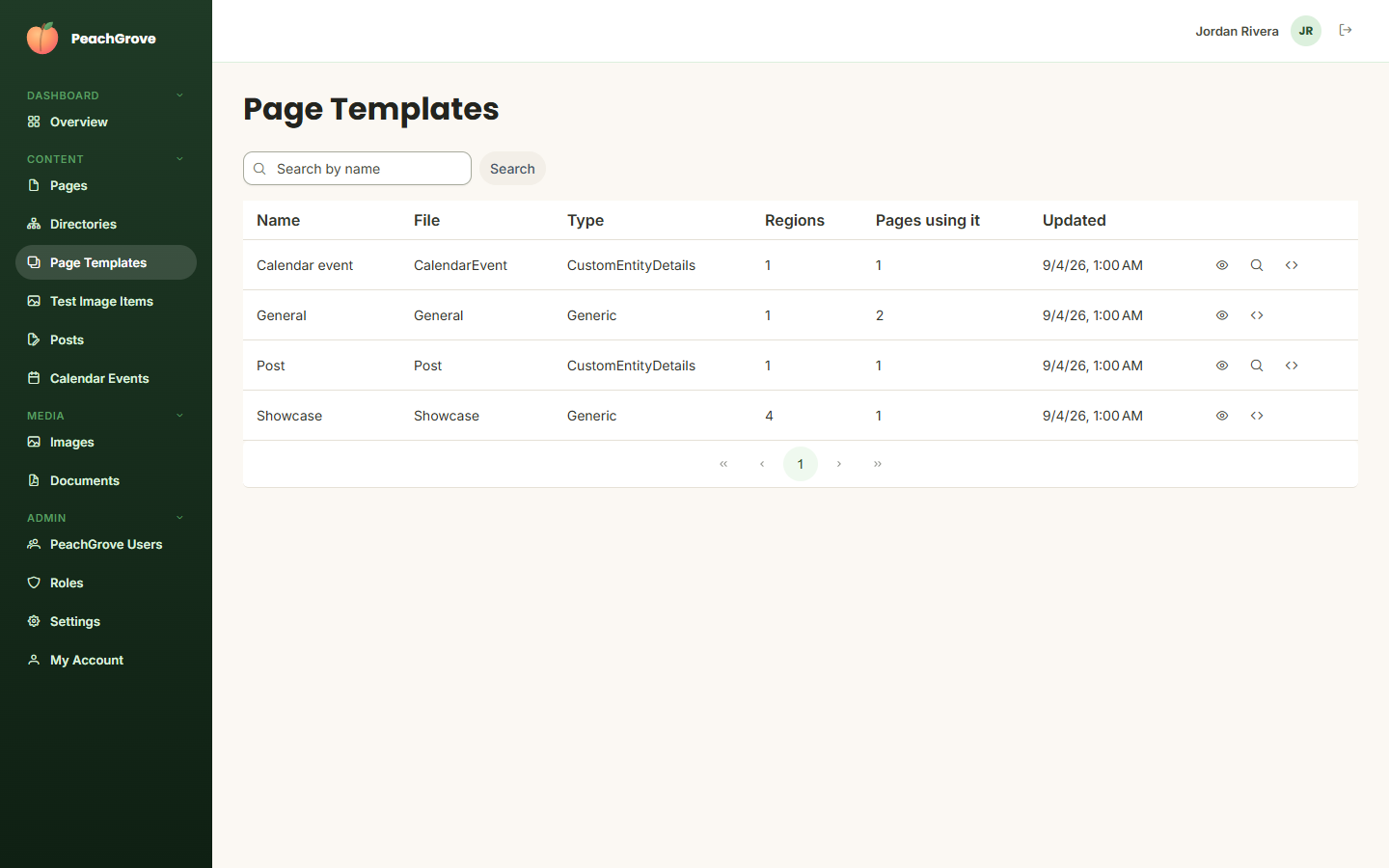
Each row has up to three actions on the right, depending on the template and your permissions:
Preview
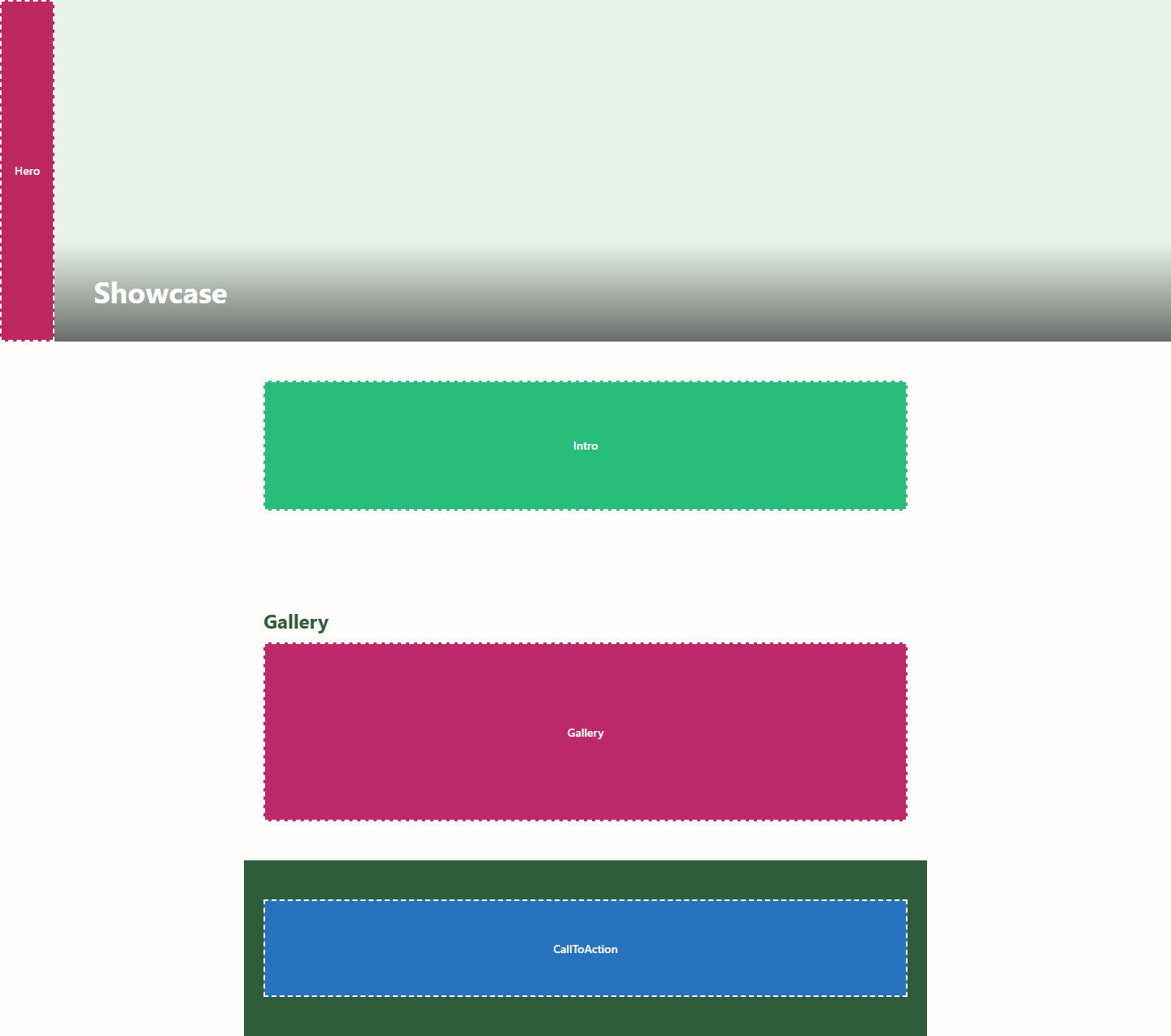
Click the eye icon to preview a template rendered with placeholder content — useful for seeing a template's layout without needing a real page to exist yet. Each region is shown as a labelled colored block so you can see how the page is divided up.
For templates used by a custom entity detail page (marked "CustomEntityDetails" in the Type column), a second icon lets you preview with an existing entry instead of placeholders — pick a real item (e.g. a specific calendar event) and see the template rendered with its actual content.
View source
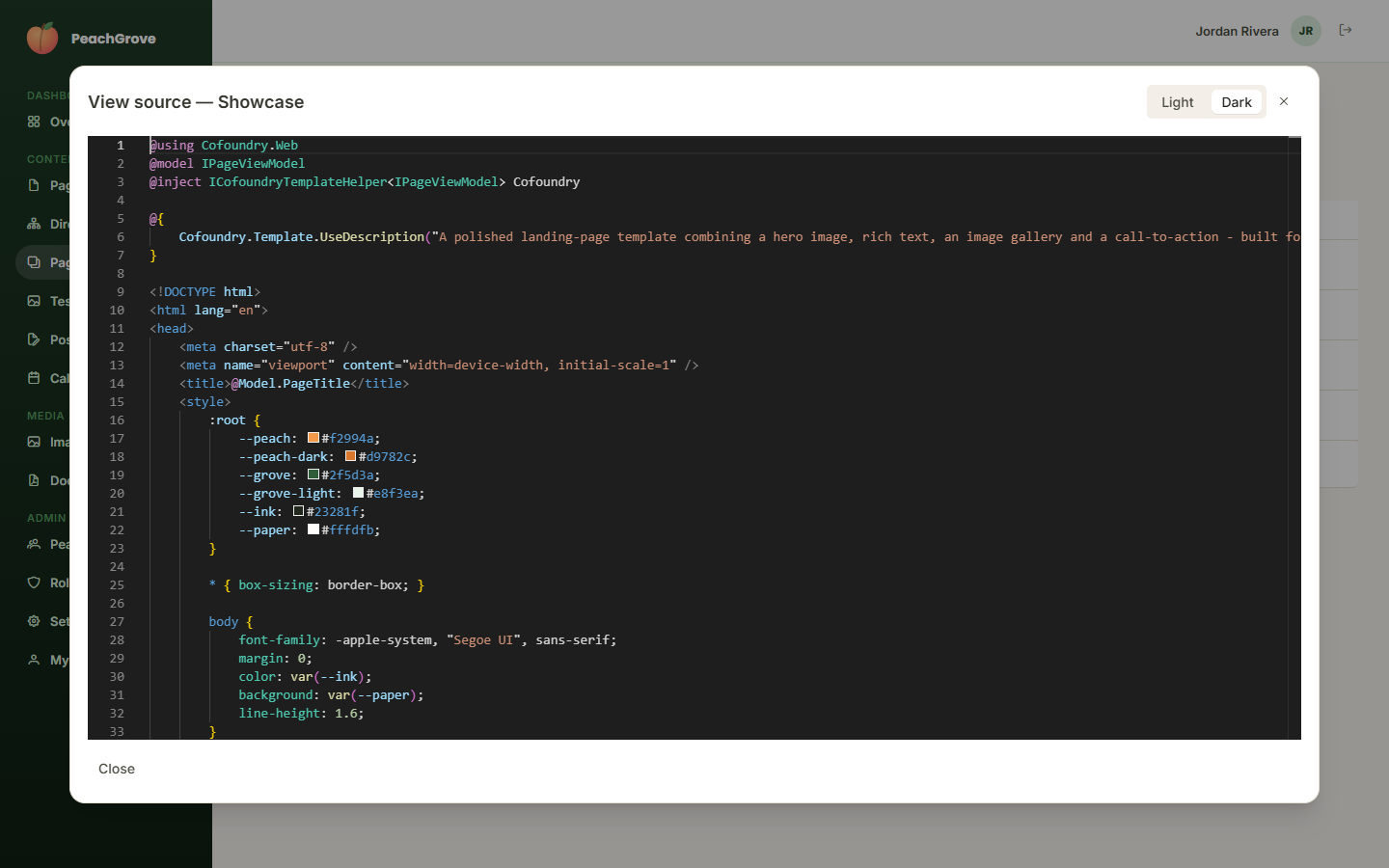
Click the code icon to view the template's raw source file in a read-only editor, with syntax highlighting and a light/dark theme toggle.
Editing via Azure DevOps
On sites where a template's source file is backed by an Azure DevOps repository, users with the right permission can edit the source directly from this dialog and commit the change — look for an edit option in the source viewer above. You'll be asked for a commit message before it's saved. If someone else has changed the file since you opened it, saving will fail with a message asking you to reload and try again, rather than silently overwriting their change.
This feature is off by default and only appears when your site has been configured to connect to a specific Azure DevOps repository.